As an Amazon Associate, we earn from qualifying purchases. Some links on this site are affiliate links at no extra cost to you. Our recommendations are based on thorough research and editorial judgment.

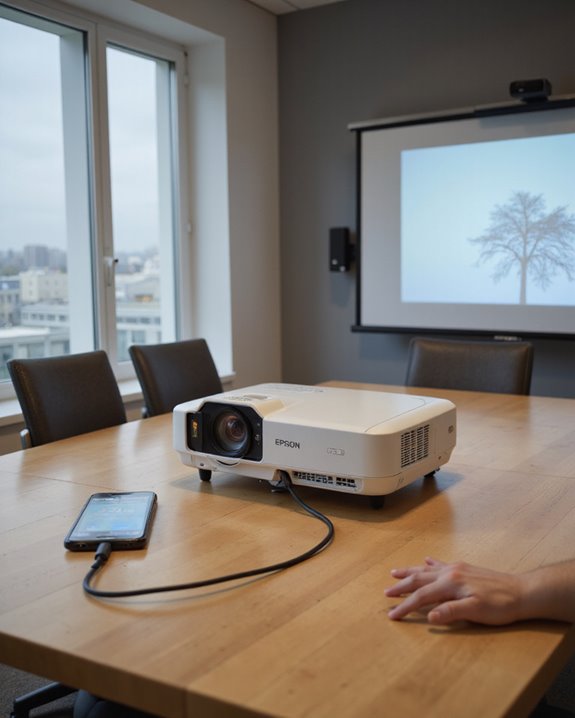
How to Connect Your Phone to an Epson Projector

To connect a phone to an Epson projector, first check that both devices are Wi-Fi enabled and compatible. Download the Epson iProjection app on the phone. Open the app, then either scan the projector’s QR code for fast pairing or connect via the projector’s Wi-Fi network using the network name and password. Wired connections require compatible adapters. Keeping the projector’s firmware upgraded guarantees language support and feature stability. Exploring further reveals more about advanced settings and troubleshooting tips.
Key Takeaways
- Ensure Wi-Fi is enabled on both your phone and the Epson projector, and install the Epson iProjection app if needed.
- Connect both devices to the same Wi-Fi network or use the projector’s simple AP mode for a direct connection.
- Launch the Epson iProjection app, then scan the projector’s QR code or manually select the projector from the app’s device list.
- For a more stable connection, use compatible wired adapters if your phone and projector support wired connectivity.
- Update the projector firmware and iProjection app to the latest versions for optimal compatibility and performance.
Requirements for Phone-to-Epson Projector Connection
You may be interested

To connect a phone to an Epson projector, several requirements must be met to guarantee a smooth and reliable connection. First, the projector must be compatible and equipped with wireless capabilities, and it should have a reliable power supply. Users may access the projector menu using either the built-in buttons or the remote control to manage settings. Both the mobile device and projector must have Wi-Fi enabled. Some projector models require an optional wireless LAN module for wireless connections. The projector should also support QR code display for easy pairing. Key requirements include:
- Compatible smartphone or tablet with a supported operating system.
- Wireless LAN power set to “On” within the projector menu.
- Simple AP (Access Point) mode enabled for direct connections.
- Verified device compatibility for seamless communication.
- Ensuring the internal cooling system operates quietly to prevent disruptions during use quiet operation.
Downloading and Installing the Epson Iprojection App
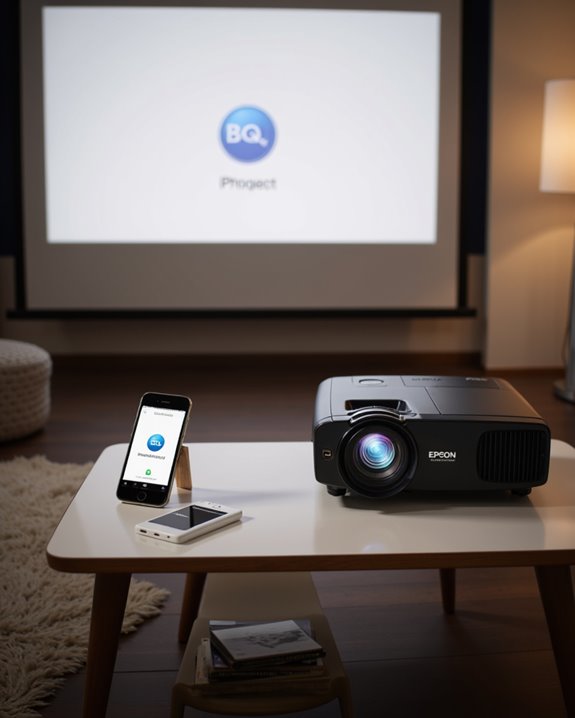
After installation, launch the app, configure network settings, and refer to Epson’s Operation Guide for further details. Ensuring your device has the appropriate connectivity options will facilitate a smoother setup process.
Connecting Wirelessly Using a QR Code
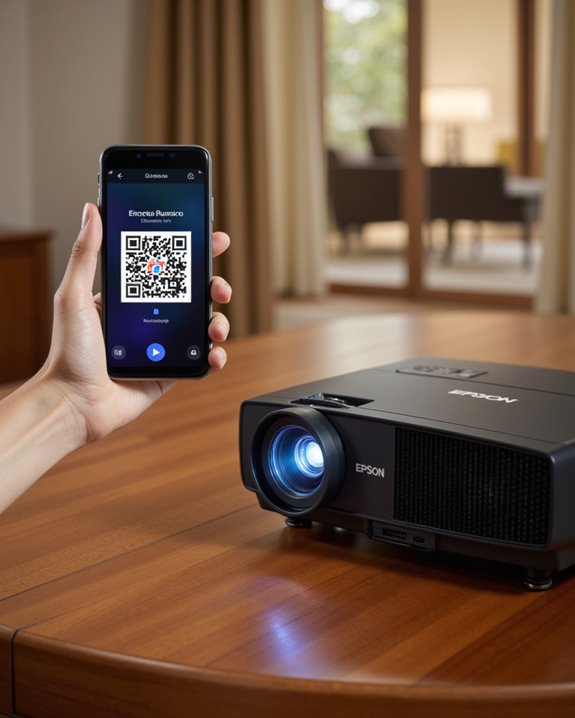
How can users connect their phones wirelessly to an Epson projector with minimal hassle? The QR code method streamlines this process by eliminating manual network entry. First, users access the projector’s Network menu, select “Display LAN Info,” and enable Text & QR Code display. Once the QR code appears on the projection surface, the Epson iProjection app—downloaded onto a phone—activates its built-in QR code reader to scan the code. This action instantly transfers the correct wireless settings to the mobile device, bypassing the need for Bluetooth pairing or HDMI connectivity, both of which require physical setup or separate pairing steps. If issues arise, users should verify the QR code is clearly visible, the app is updated, and the projector supports QR code connections.
Setting Up a Manual Wireless Network Connection
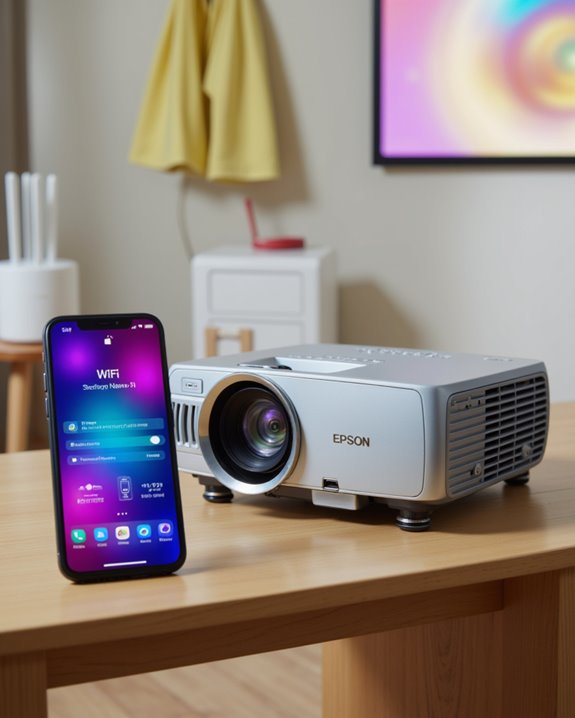
When users need a reliable connection between their phone and an Epson projector, setting up a manual wireless network is often the preferred method. This process requires both devices to have Wi-Fi enabled. Using the projector’s remote, navigate to the Network menu, select the appropriate wireless mode—such as Access Point—and confirm the network name (SSID). Wireless security is crucial, so users should choose strong encryption, like WPA2, to protect the connection. On the phone, access Wi-Fi settings, select the projector’s SSID, and enter the password if prompted. Download the Epson iProjection app for seamless control. Connecting manually allows users to manage network bandwidth, which is the amount of data transmitted per second, ensuring a stable and secure projection experience. Always test the connection before presenting.
Using Quick Wireless and Advanced Wireless Modes
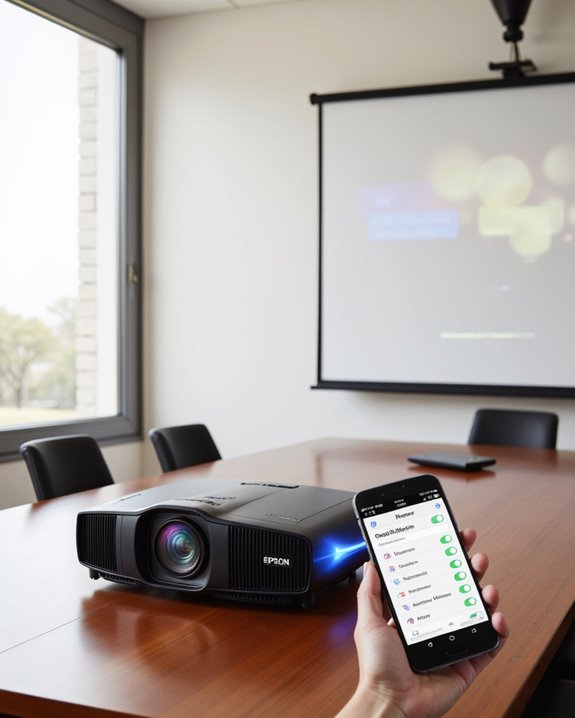
Connecting a phone or other device to an Epson projector can be accomplished using either Quick Wireless or Advanced Wireless modes, each suited for different needs. Quick Wireless mode uses a dedicated USB key for a direct, temporary connection without requiring a router or complicated setup. This approach emphasizes ease of use, but device compatibility is mainly limited to Windows systems, and wireless security is basic since it bypasses standard network protections. Additionally, the wireless technology involved in these modes ensures smooth streaming and minimal lag during presentations. In contrast, Advanced Wireless mode connects devices and the projector through an existing wireless network, often using the Epson iProjection app. This method supports a wider range of devices, including iOS, Android, and Chromebooks, and benefits from stronger wireless security measures. Advanced mode is ideal for permanent installations or environments needing stable, secure, multi-device support.
Recommended Products

Seamless HD Wireless Streaming: Experience crisp, high-definition visuals with our wireless HDMI display dongle adapter, supporting 4K and delivers an impressive 1080P/60Hz Full HD output.

HD Wireless Mirroring:This wireless display adapter supports 1080P@60Hz with 4K decoding, allowing you to mirror content from your iPhone, iPad, or MacBook to a larger screen such as a TV, monitor, or projector. Enjoy a cinematic viewing experience in your living room without the hassle of long, tangled cables
Establishing a Wired Connection With Your Phone
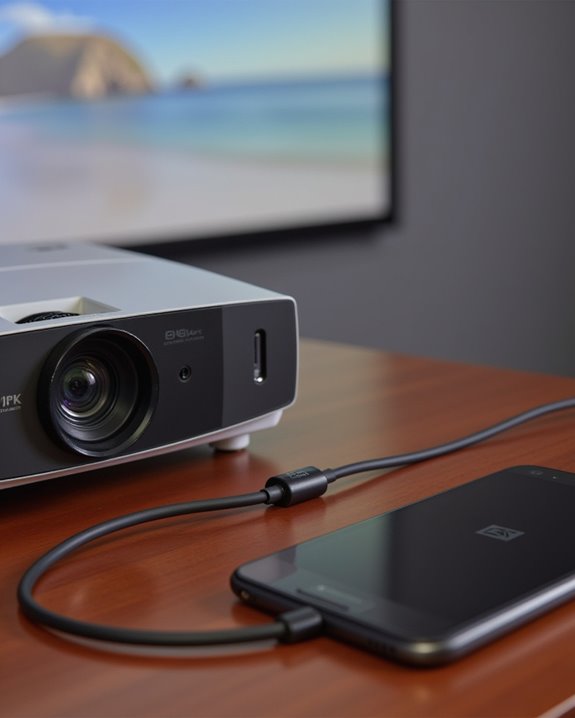
While wireless connections are common for linking phones to Epson projectors, a wired setup offers greater stability and performance, making it an attractive choice in environments where reliability is essential. Wired connections reduce interference, boost data speeds, and enhance wireless security—wired networks are less vulnerable to hacking than wireless ones. Ethernet standards, which govern how devices communicate over cables, support faster data transfer and consistent performance compared to Wi-Fi. To connect, users need an Ethernet cable and compatible network infrastructure. Smartphones lack built-in Ethernet ports, so adapters—such as USB-C to Ethernet or MHL (Mobile High-Definition Link)—are necessary. Setup steps include:
- Connecting the projector to the network via Ethernet.
- Using appropriate adapters for the phone.
- Configuring network settings on the projector for ideal performance.
Compatibility and Supported Devices
How does one know if their device will work with an Epson projector? Device compatibility depends on meeting specific operating system requirements. For Android, the Epson iProjection app supports devices running OS version 5.0 or later, with a minimum screen resolution of 800 x 480 pixels. For Apple devices, iOS 11 or later is required for iPhones, while iPadOS 13 or later is needed for iPads. Both smartphones and tablets are supported.
Supported projectors include models like the BrightLink 421i, 425Wi, and 430i. Most current and many past Epson projectors are compatible, and a full compatibility list can be found on the Epson iProjection website.
Connection options include:
- Wireless (Wi-Fi)
- HDMI cable
- USB cable
This ensures broad device and projector compatibility.
Recommended Products

All-in-One Compatibility for iPhone 15/16/17: Seamlessly for Phone, MacBook, iPad, Galaxy S24, Switch and USB-C laptop to HDMI TVs/Monitors/Mini Projector. No extra adapters required—stream, mirror, or present in seconds while keeping your device charged.

iOS ONLY = ZERO COMPATIBILITY HEADACHES — Unlike adapters that claim "works with all devices" but fail on Android due to brand/model/OS differences, this adapter is designed exclusively for iPhone & iPad (iOS 7+). No app downloads, no Bluetooth pairing, no WiFi needed — just plug in and your screen mirrors instantly. Works with iPhone 16/15/14/13/12/11 and all iPad models.
Language Options and Firmware Considerations
Which language options are supported on Epson projectors, and how do firmware updates affect these settings? Epson projectors offer language localization through menu settings, usually found under the “Extended” menu. Users can select from several major world languages, which changes the on-screen menus and instructions to improve accessibility. Language options may differ by model or regional firmware version. Firmware updates—software that controls the projector’s basic functions—can expand language support, resolve display bugs, or fix missing menus. Updating firmware is recommended to ensure the projector’s language and wireless connection features work with the latest Epson iProjection app versions. The Epson iProjection app itself supports English and Japanese by default, with potential for more languages as updates are released. Always check release notes for new language options.
Troubleshooting Common Connection Issues
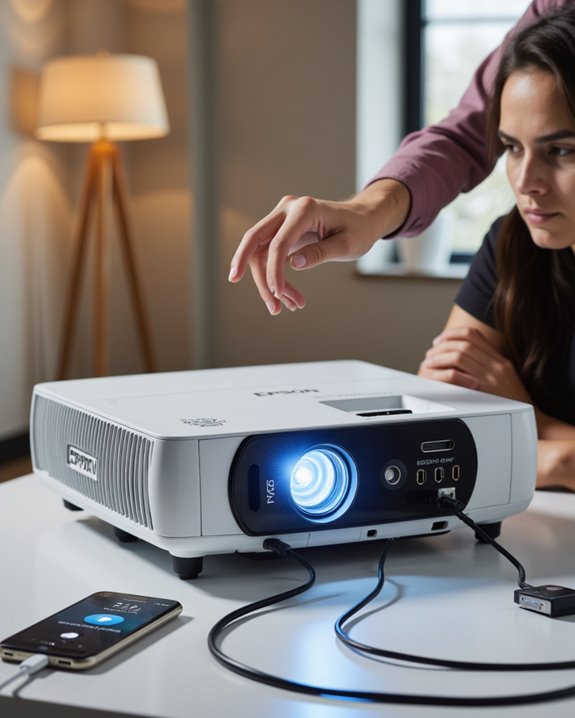
Connecting a mobile device to an Epson projector may not always work perfectly on the first try, but most connection issues can be resolved with a systematic approach. First, verify both the projector and phone are on the same Wi-Fi network, and that Airplane Mode is off. Restart the mobile device to refresh network settings. If using a direct wireless link, connect to the projector’s SSID instead of a standard Wi-Fi network. For device security, confirm all required app permissions are granted, and that no restrictions block connections. In Bluetooth pairing scenarios, verify both devices are discoverable and that pairing requests are accepted. Update or reinstall the Epson iProjection app if persistent issues occur. Finally, check the projector’s Screen Mirroring and Simple AP settings.
Recommended Products

4K Decoding & 1080P Full HD Output at 60Hz: Enjoy crisp, vivid visuals powered by 4K decoding and 1080P/60Hz Full HD output—great for home movies, gaming, and clear...
Frequently Asked Questions
Can I Use My Phone as a Remote Control for the Projector After Connecting?
A user can utilize their phone as a remote control for the projector, provided device compatibility is confirmed. Functionality varies by projector model, enabling input switching, basic controls, and navigation features through supported apps after successful connection.
Is It Possible to Mirror Streaming Apps Like Netflix From My Phone?
Like a locked door blocking entry, screen mirroring streaming apps such as Netflix often faces streaming restrictions due to copyright and DRM protection. Most projector apps cannot bypass these limitations, limiting mirroring capabilities for protected streaming content.
Does Connecting My Phone Affect the Projector’S Ability to Connect to Other Devices?
Connecting a phone to the projector does not impact device compatibility or connection stability with other devices. The projector can connect to multiple devices simultaneously, provided all devices meet compatibility requirements and share the same network connection.
Can Multiple Phones Connect to the Projector at the Same Time?
The current question addresses the feasibility of multi phone sharing and simultaneous display. Multiple phones can connect to the projector at the same time, enabling up to four devices to share content simultaneously using the Epson iProjection app.
Are There Security Risks When Connecting My Phone to a Projector Over Wi-Fi?
Security risks exist when connecting a phone to a device over Wi-Fi, including threats related to weak Wi-Fi security and insufficient network encryption. Vulnerabilities or poor password practices can expose sensitive data or allow unauthorized access to the device.