As an Amazon Associate, we earn from qualifying purchases. Some links on this site are affiliate links at no extra cost to you. Our recommendations are based on thorough research and editorial judgment.

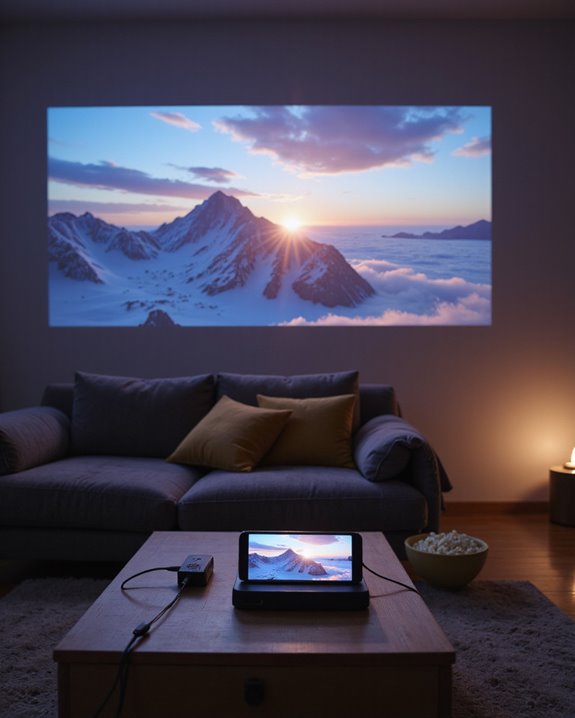
How to Watch Movies on a Projector From Your Iphone

To watch movies on a projector from an iPhone, connect the devices using an HDMI cable and a Lightning Digital AV Adapter, or use AirPlay for wireless streaming if the projector or connected Apple TV supports it. For HDMI, attach the adapter to the iPhone, then link to the projector, adjusting input settings as needed. AirPlay requires both devices on the same Wi-Fi network, enabling easy screen mirroring. More details follow on optimizing quality and resolving common issues.
Key Takeaways
- Use a Lightning to HDMI adapter to connect your iPhone directly to the projector for reliable video and audio transmission.
- Stream wirelessly using AirPlay if your projector supports it or by connecting an Apple TV to the projector.
- Ensure both your iPhone and wireless projector or Apple TV are on the same Wi-Fi network for seamless AirPlay mirroring.
- Install third-party screen mirroring apps if your projector lacks native AirPlay or HDMI support.
- Optimize projector settings like brightness, resolution, and focus for the best movie viewing experience.
Preparing Your Devices and Equipment
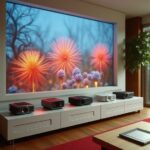
Before watching movies on a projector from an iPhone, it is essential to guarantee all devices and equipment are properly prepared. First, confirm device compatibility by checking that the projector supports your iPhone’s connection type, such as HDMI, USB-C, or wireless AirPlay. Review the projector’s manual for supported input ports. Gather required accessories, like a Lightning Digital AV Adapter or USB-C video cable, depending on your iPhone model. Select a projector type—pico, mini, or standard—based on portability and image quality needs. To ensure a seamless viewing experience, consider wireless streaming capabilities that many modern projectors offer for easy connection without cables. Prepare the projection environment by choosing a darkened space and using a smooth, white wall or projector screen. Place the projector at its recommended distance. Ensure power sources are nearby for uninterrupted use. Complete device calibration by adjusting focus, zoom, and screen brightness settings.
Recommended Products

【HDMI 1080p with Big Screen without Delay】 The Lighting Digital AV Adapter supports mirroring of what is displayed on your device screen including apps, presentations,websites,slideshows,and more to your HDMI enabled HD TV,display, projector,or other compatible display in up to 1080P HD.Provides a superb visual feast in everyday life and work.

All-in-One Compatibility for iPhone 15/16/17: Seamlessly for Phone, MacBook, iPad, Galaxy S24, Switch and USB-C laptop to HDMI TVs/Monitors/Mini Projector. No extra adapters required—stream, mirror, or present in seconds while keeping your device charged.
Connecting Your Iphone to a Projector With an HDMI Cable
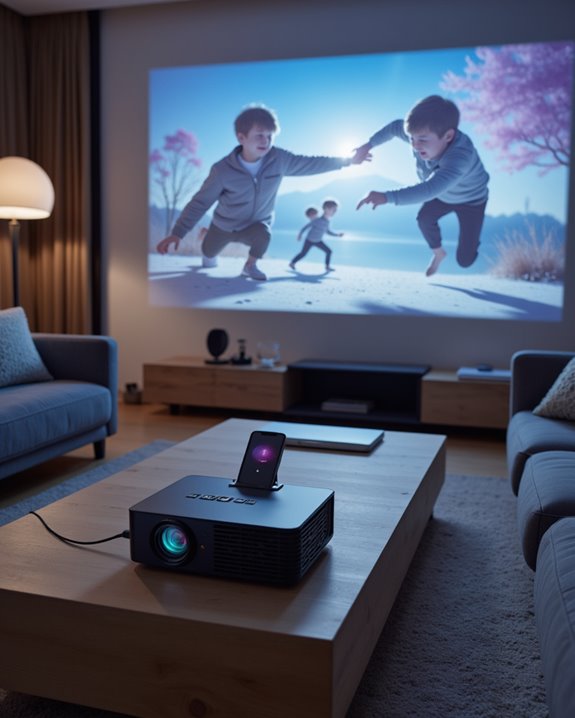
Connecting an iPhone to a projector using an HDMI cable offers a reliable and straightforward way to display movies on a larger screen. This cable connection requires careful attention to equipment compatibility. Begin by confirming the iPhone has a Lightning port and selecting a Lightning to HDMI adapter designed for that model. Choose an HDMI cable with enough length for your setup and check that the projector features an HDMI input. The process is as follows:
- Plug the adapter into the iPhone.
- Connect one end of the HDMI cable to the adapter, and the other to the projector.
- Switch the projector input to the correct HDMI source.
For ideal results, adjust projector settings for resolution, aspect ratio, brightness, and sound. Some adapters provide charging ports, supporting device power during use. High-quality cables help prevent signal degradation and ensure a crisp display.
Recommended Products

【Lightning to HDMI Cable for iPhone to TV】 Elevate your viewing experience with our Lightning to HDMI cable supporting a resolution of up to 1080P (HD). Mirror what's displayed on your iPhone or iPad screen, including images, movies, games, apps, presentations, websites, slide shows, and more, on your HDMI-equipped TV, display, projector, or other compatible screens. Enjoy stunning visuals with crystal-clear clarity.

【iPhone 15 HDMI ADAPTER TO TV】- The 2-in-1 iPhone to HDMI adapter for tv helps iPhone15/16/iPad/MacBook expand a HDMI 4K@60Hz port and a charging port, enjoy crystal-clear audio and high-definition video experience, just share happiness with your family or friends. This apple HDMI to USB C adapter allows for faster charging, stable connections and high-definition output, which means you can enjoy home-theater, live streaming ,working report and playing while charging for your apple USB C to HDMI adapter.
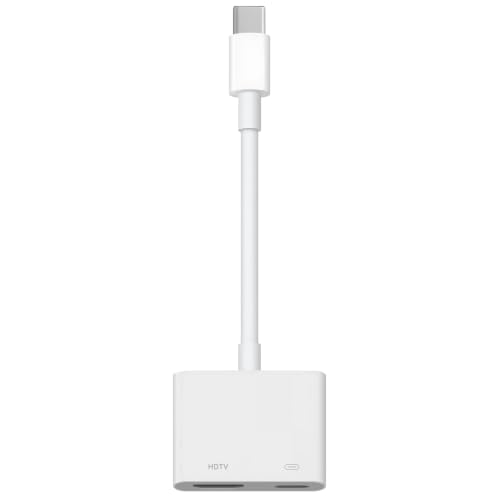
【Never Worry About Power】 Enjoy uninterrupted entertainment with 4K HDMI video output and USB-C 100W charging, ensuring you're always powered up and ready to go
Using AirPlay for Wireless Movie Streaming
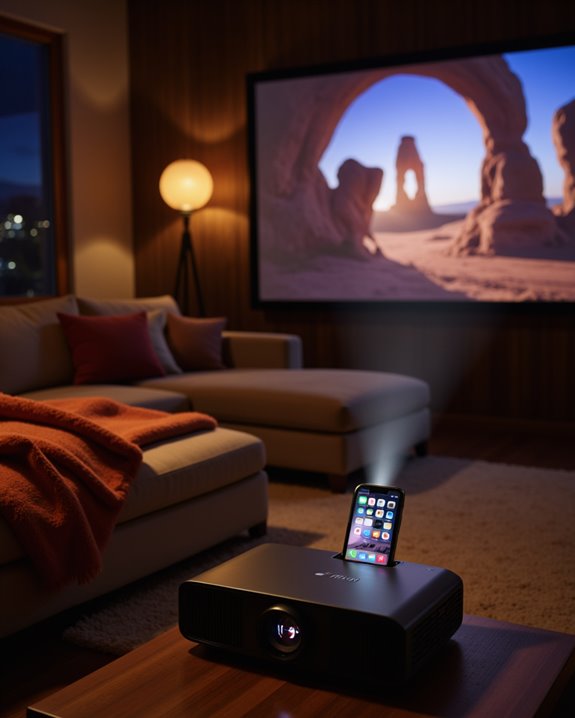
Using AirPlay, Apple’s wireless streaming technology, allows movies from an iPhone to be displayed on a projector without physical cables. AirPlay uses wireless connectivity, meaning both devices connect through Wi-Fi or Bluetooth. Many modern projectors now offer native AirPlay support, enabling direct streaming in high-definition with minimal setup. These projectors ensure device compatibility with iPhones running iOS 8 or later, starting from the iPhone 5. Additionally, wireless streaming capabilities are increasingly integrated into projectors, making setup even more seamless. If a projector lacks built-in AirPlay, an Apple TV connected via HDMI serves as a bridge, expanding compatibility. Setup requires both iPhone and projector (or Apple TV) to share the same Wi-Fi network. AirPlay supports two modes:
- Media streaming for movies and audio
- Full screen mirroring for real-time display
No additional apps are needed, as AirPlay is integrated into iOS.
Recommended Products
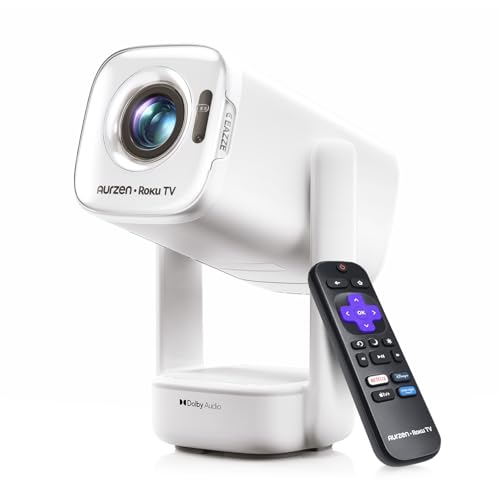
A Roku account and internet connection are required for activation (Creating an account is free)

【The Latest WIFI 6 Technology And Bluetooth 5.3】This projector with Wi-Fi and Bluetooth is equipped with the latest Wi-Fi 6 technology, compatible with Wi-Fi 6, 5G and 2.4G, offering faster connection speed and stronger stability, eliminating buffering and disconnection issues, and ensuring smoother online content playback. Additionally, it is fitted with the latest Bluetooth 5.3 chip, allowing for easy connection to Bluetooth speakers, headphones or other Bluetooth audio devices, providing a more efficient and stable transmission channel, and enabling users to enjoy higher audio quality with ease

【Compatibe with Netflix, No Extra Devices Needed】This isn’t just a projector—it’s your "Hollywood Digital Pass." Instantly access a global library with pre-installed YouTube/Prime Video, offering 1000,000+ titles at your fingertips. Enjoy officially licensed content, secure and regularly updated, with stunning 4K HDR clarity.
Screen Mirroring With Third-Party Apps
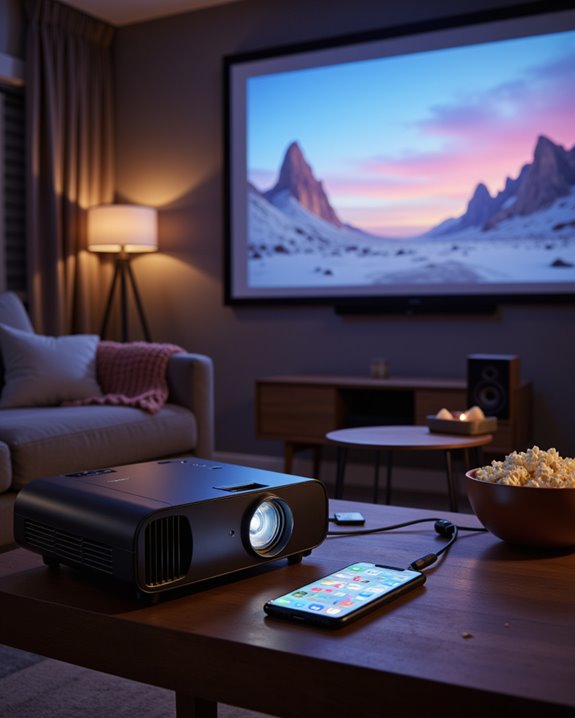
How can iPhone users display movies on a projector without built-in wireless support? Third-party screen mirroring apps provide a practical solution. App selection depends on device compatibility; not all apps support every projector or streaming device. Popular options include iMyFone MirrorTo, which offers real-time annotations for presentations, and Mirroring360, enabling multiple devices to display content at once. Projector TV stands out for hassle-free movie streaming. Key features to consider are:
- Seamless performance for smooth playback
- Multiple device support for shared viewing
- Recording capabilities for content capture
Most third-party apps are available through the Apple App Store and require simple installation, with no extra hardware needed. Compatibility checks are important to make sure iPhone and projector support. Flexible device compatibility broadens viewing options beyond native solutions.
Recommended Products

Screen mirroring: Easily mirror the screen of your iPhone, iPad, or Mac to your Fire TV via AirPlay.

【4-in-1 Wireless Connectivity】Combines Wireless CarPlay, Android Auto, AirPlay, and Miracast into one adapter, allowing easy switching between navigation, calls, music, voice assistant functions, and wireless screen mirroring directly on your car display

Screen mirroring: Easily mirror the screen of your iPhone, iPad, or Mac to your Fire TV via AirPlay.
Choosing the Right Projector for Your Iphone
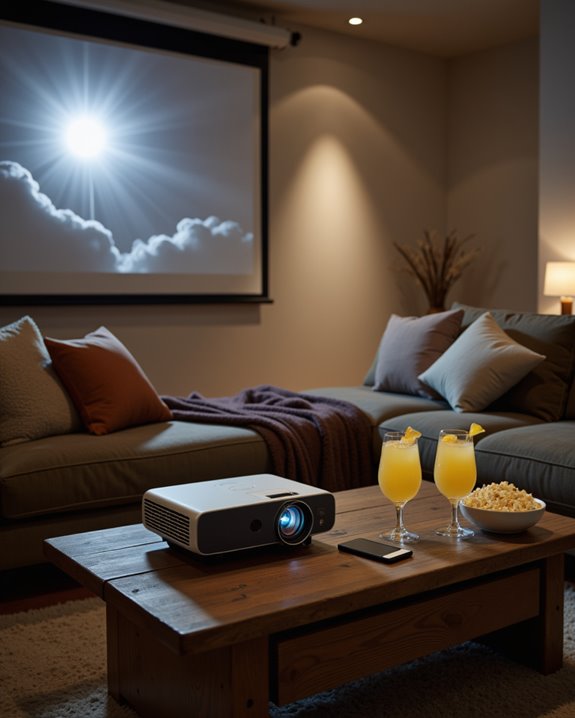
When selecting a projector for iPhone movie viewing, several technical features take priority to guarantee a satisfying experience. Projector brightness, measured in lumens, is vital—higher lumens (1,000 or more) ensure clear images in well-lit rooms, while models under 300 lumens like the Nebula Capsule Max suit darker spaces. Device compatibility is equally important. Look for projectors supporting AirPlay, HDMI, or built-in Wi-Fi for seamless iPhone connection. Additional factors include:
- Resolution: Choose 1080p or 4K for crisp visuals.
- Portability: Compact projectors are easier to transport and set up.
- Connectivity: Multiple ports (USB, Bluetooth) expand usage options.
- Brand reputation: Reliable brands like Epson and Samsung offer durable models.
Balancing these elements helps users find the ideal projector for their needs.
Recommended Products
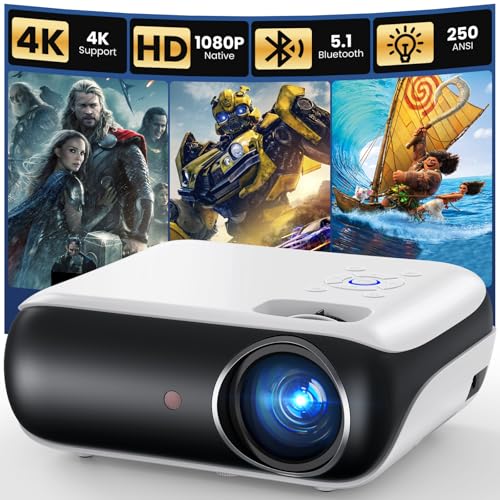
[ Native 1080P Full HD Resolution ] - Enjoy crystal-clear visuals with HAPPRUN H1's native 1920x1080 resolution, delivering sharper, brighter, and more vibrant images for an immersive viewing experience. This 1080p projector is perfect for creating a stunning home theater or bedroom projector setup

【Smart Projectror with Built-in Apps】This projector does more than simply mirror videos and images from your external devices. Preloaded with mainstream streaming apps, it lets you directly access YouTube, Prime Video and more without an extra streaming TV stick. What's more, the MAYPUG mini projector comes with a built-in TV Store, enabling you to conveniently download your favorite additional streaming applications.
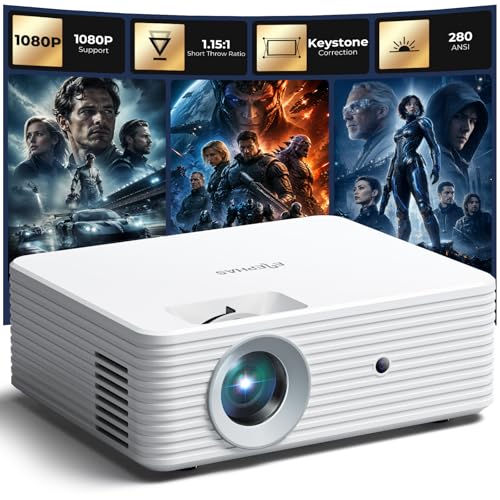
【Premium Image Quality & High Performance】 This mini projector for iPhone features a semi-enclosed optical engine for stable performance, efficient cooling, and dust resistance. The all-glass lens delivers brighter images with accurate colors. Supports 1080P input with a 1.15:1 short throw ratio, making it ideal as a projector for bedroom, apartments, and small spaces.
Optimizing Video and Audio Quality
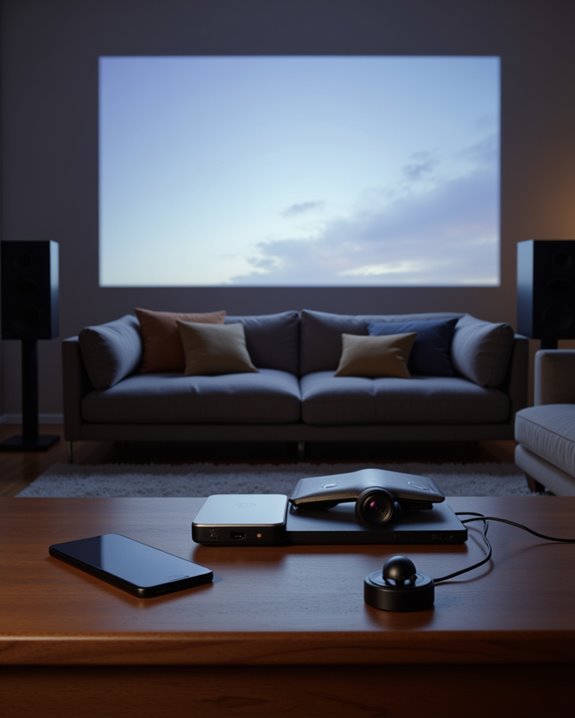
To achieve the best movie experience with an iPhone and projector, both video and audio quality must be carefully optimized. First, match the video resolution to the projector’s native resolution—using 4K or 1080p files ensures sharper images. Adjust the aspect ratio, which is the relationship between width and height of the video, so it fits the projector screen without distortion. Employ smart video compression, a technique that reduces file size while maintaining detail, to prevent playback delays. On the iPhone, select the highest resolution and frame rate available, and shoot in landscape orientation for a wider display. For audio, connect external speakers, choose lossless formats like FLAC, and ensure audio sync. Finally, calibrate projector brightness, contrast, and color for vivid, clear images.
Troubleshooting Common Issues
Although connecting an iPhone to a projector can create a convenient movie-viewing setup, several common issues may arise that interrupt smooth operation. Connection problems often result from loosely connected HDMI or Lightning adapters, faulty cables, or outdated device software. Users should check that all components are secure and powered, replace any damaged cables, and update both iOS and projector firmware. When wireless streaming via AirPlay fails, ensure all devices share the same Wi-Fi network and the projector supports AirPlay, or use an Apple TV. If there is no sound, verify audio settings on both the iPhone and projector. Projector placement can also impact performance; ensure it is positioned correctly for ideal signal and cooling. Regularly inspect cables and adapters for wear to prevent future issues.
Frequently Asked Questions
Can I Stream Netflix or Disney+ From My Iphone to a Projector?
Streaming Netflix or Disney+ to a projector is possible, provided wireless connectivity options like AirPlay or wired HDMI connections are supported. Device compatibility between the iPhone, projector, and streaming service app is essential for successful playback and quality.
Will Streaming From My Iphone Drain Its Battery Quickly?
Streaming from an iPhone means the screen glows, processors churn, radios transmit—each action accelerating battery drain. Without power saving measures like reduced brightness or background app management, users will notice faster battery depletion during extended streaming sessions.
How Can I Play Movies Stored Offline on My Iphone?
To access movies stored offline on an iPhone, users navigate to the relevant app’s offline storage section and select the desired title. Local playback begins instantly, allowing viewing without requiring an internet connection or streaming data.
Can I Use Bluetooth Speakers With My Projector Setup?
Bluetooth speakers can be used with a projector setup if both devices offer Bluetooth compatibility, enabling wireless audio transmission. Users should verify supported Bluetooth versions and profiles to guarantee stable pairing and ideal sound quality during movie playback.
Are There Any Copyright Issues With Projecting Purchased Movies?
Projecting purchased movies raises copyright infringement and legal considerations, especially regarding public performance. Private home viewing typically avoids infringement, but unauthorized public showings or circumventing digital rights management protections may violate copyright laws and content providers’ terms of service.