As an Amazon Associate, we earn from qualifying purchases. Some links on this site are affiliate links at no extra cost to you. Our recommendations are based on thorough research and editorial judgment.

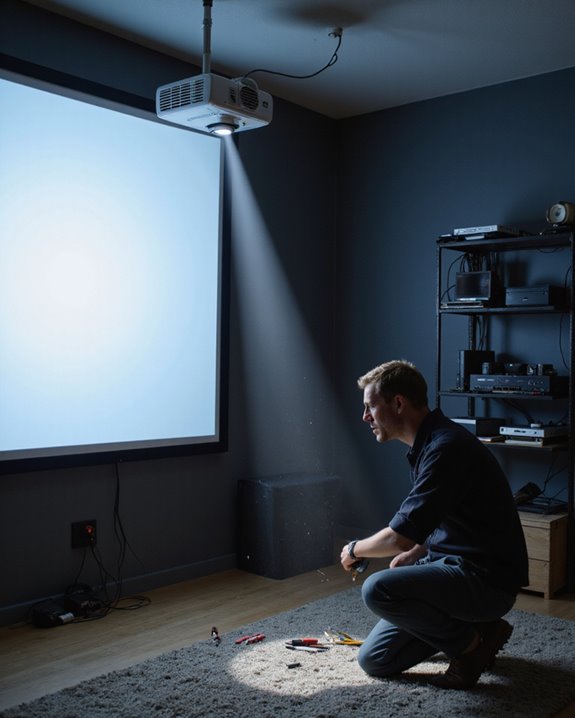
Why Does My Projector Keep Cutting Out? Troubleshooting Tips

A projector that keeps cutting out often has issues with unstable power connections, damaged or low-quality cables, overheating from poor ventilation, or incorrect input settings. Overheating occurs when airflow is blocked, causing the device to shut down for protection. Check that power outlets, cables, and connections are secure and clean. Inspect input sources and adjust resolution or display settings if needed. If the problem persists, it may signal internal hardware faults or require professional repair. More practical solutions are outlined below.
Key Takeaways
- Check power supply, cables, and outlets for secure connections and signs of damage or instability.
- Ensure the projector has proper ventilation and regularly clean air filters to prevent overheating shutdowns.
- Verify input sources and display settings are correctly configured and securely connected.
- Inspect for internal hardware issues, such as lamp failure or faulty cooling fans, that may require professional repair.
- Perform regular maintenance and follow manufacturer guidelines to prolong lifespan and prevent unexpected shutdowns.
Checking Your Power Connections
You may be interested

When a projector cuts out unexpectedly, checking the power connections is the most important first step. A secure fit is essential—verify the power cable is firmly plugged into both the projector and the wall outlet, avoiding loose or intermittent connections. Test the outlet by plugging in another device to confirm it delivers electricity. For setups using an extension cord, ensure extension cord safety by confirming it is undamaged and rated for the projector’s electrical needs. Excessive force when plugging in can harm both connectors and ports, so handle with care to preserve power cable durability. Also, make sure the projector’s power switch is set to “on.” These precise checks help identify simple issues before more complex troubleshooting, and support stable, reliable operation in daily use. Additionally, inspecting the power supply and ensuring it meets the device’s specifications can prevent unexpected power interruptions.
Inspecting Cables for Damage and Quality
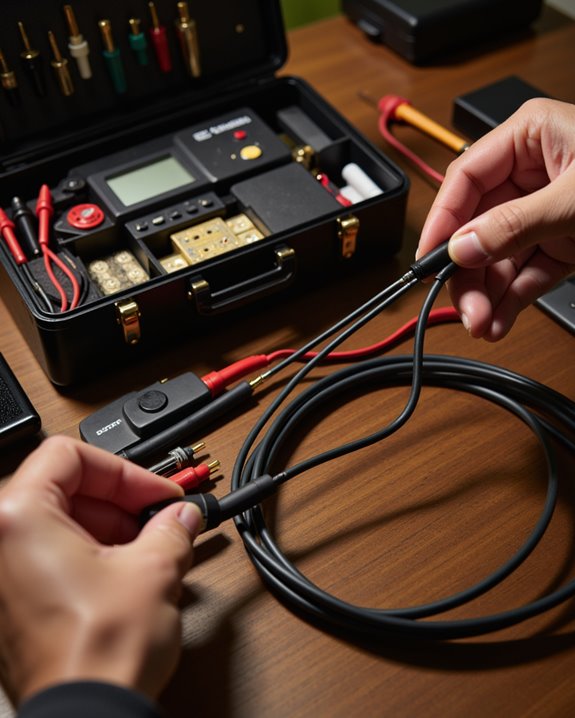
Although power issues are a common cause of projector interruptions, cable condition and quality are equally crucial for consistent performance. Inspecting cables for damage, such as frays, cuts, or burn marks, is essential for maintaining cable integrity—meaning the cable’s ability to transmit signals without loss or interference. Testing cables with other devices can help determine if a specific cable is faulty. High-quality cables that meet the projector’s specifications reduce the risk of signal loss. Connector maintenance, which involves cleaning and checking for corrosion, prevents disruptions at the point where cables attach to devices. Important steps include:
- Using high-speed HDMI cables for modern projectors
- Ensuring VGA and audio cables are undamaged and secure
- Replacing aging or damaged cables promptly
- Organizing cables to prevent stress or interference
- Regularly inspecting cables for signal degradation to ensure optimal transmission.
Recommended Products
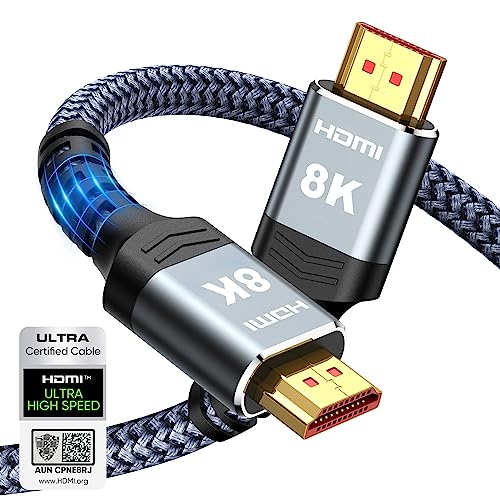
Top Technology--8K@60HZ: This 8K Ultra-High Speed 2.1 HDMI Cable uses the most cutting-edge technology, which is compatible with 8K@60HZ,4K@240HZ and 4K@120HZ clearly displays every particle, and accurately processes every signal source.

Top Technology----8K@60HZ: This 8K Ultra High Speed HDMI Cable uses the most cutting-edge technology, is compatible with 8K@60HZ and 4K@120HZ, clearly displays every particle, and accurately processes every signal source.

High Performance: Thanks to premium build quality, HDMI-to-HDMI cables of 20ft and longer support up to 4K@60Hz. Also supports HDR, 7.1 surround sound, ARC, and Ethernet for stunning image and sound quality
Evaluating Power Source and Outlet Reliability
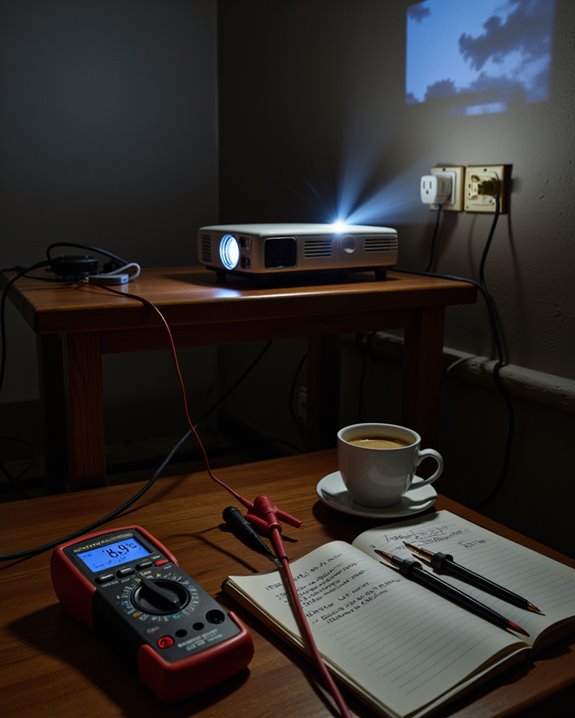
A reliable power source is critical for uninterrupted projector operation, as unstable electricity can cause the device to turn off without warning. To assess outlet reliability, users should test the outlet with other devices and avoid sharing it with high-power appliances, which can cause power surges or drops. Inspect the power cord for damage, ensuring it is securely connected and not excessively bent or tangled. Use only manufacturer-recommended cords, as incompatible types may disrupt power flow. Consider surge protectors or an uninterruptible power supply (UPS) to guard against sudden power interruptions. Check for signs of outlet wear—such as discoloration or sparking—which indicate poor reliability. Stable power also supports consistent software updates and wireless connectivity, as interruptions may disrupt these important projector functions. Additionally, selecting a high-brightness projector with stable power input ensures optimal performance even in less consistent electrical environments.
Preventing Overheating and Maintaining Airflow
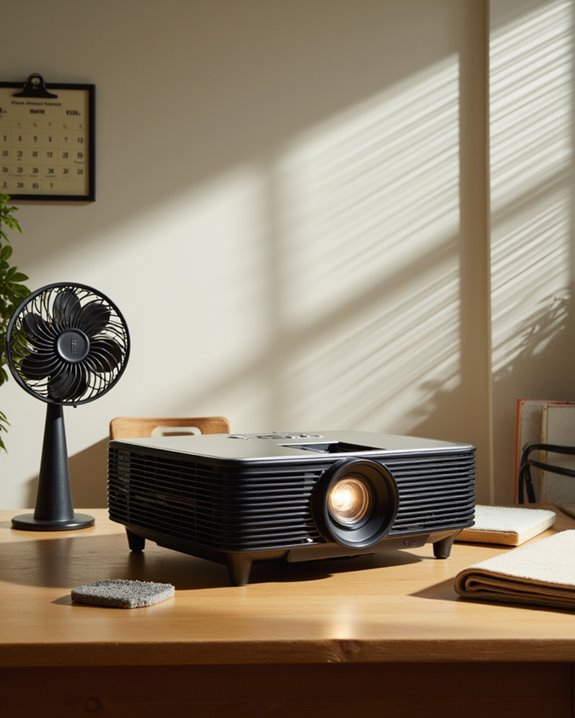
Stable power alone cannot guarantee continuous projector performance; heat management is equally essential. Preventing overheating begins with proper ventilation techniques. Projectors should be placed in open areas, away from direct sunlight and heat sources. Fan placement is vital—integrated cooling fans or external fans help expel hot air, reducing internal temperatures. Avoiding enclosed spaces, such as cabinets or corners, maintains steady airflow around the unit. Regularly clean air filters to prevent dust buildup, which can block vents and cause heat retention. Consider using eco-mode settings, which operate the projector at lower power and heat output. Additional ventilation techniques include installing vents or ducts near the projector and periodically airing out the room. For advanced setups, custom cooling or heat exhaust systems further improve temperature control.
Recommended Products
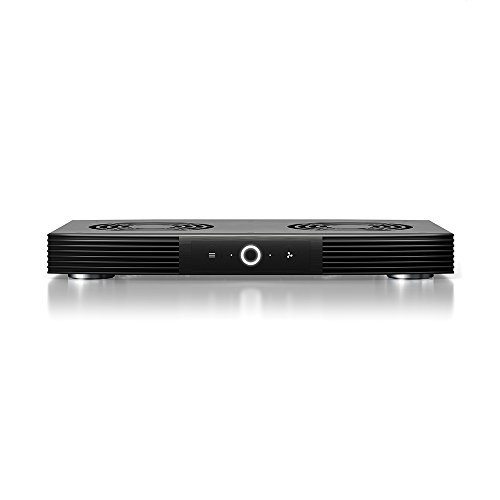
A quiet fan system designed for cooling routers, modems, game consoles, and other AV components.

【2-in-1 Dual Row 80mm USB Cooling Fan】 ELUTENG dual-row 8cm USB fan is USB powered and supports plug and play. It can be placed horizontally or vertically for flexible installation. Equipped with 2 connected fans that run simultaneously, providing stronger and more efficient cooling performance. Ideal for cooling Router, Laptop, TV Box, Receiver, Mobile Phone, PS5, PS4, Projector, Instrument, and Hard Drive Enclosure.

【With 2 DC to USB Female Adapters】ELUTENG computer fan USB 120mm is equipped with 2 DC female to USB female adapters for interface conversion, easily adapting to multiple devices. It provides a solution to the problem of incompatible interfaces between devices, allowing you to use the fan whenever and wherever you want.
Ensuring Correct Media Source and Resolution Settings
Selecting the correct media source and configuring resolution settings are vital steps for guaranteeing reliable projector performance. Users should first identify which ports are available—such as HDMI, VGA, or USB—and confirm all cables are secure. The projector’s input source must match the connected device; this is selectable through the projector’s menu system. Matching the projector’s resolution to the source device is essential for sharp, clear images. For most content, a 1080p setting is recommended, but testing different resolutions may optimize results. Adjusting contrast—altering the difference between light and dark areas—and calibrating color, which means fine-tuning color tones for accuracy, further enhances image quality. Additional adjustments, like setting the correct aspect ratio and using keystone correction, ensure a distortion-free, vibrant viewing experience.
Testing Audio and Video Output Connections
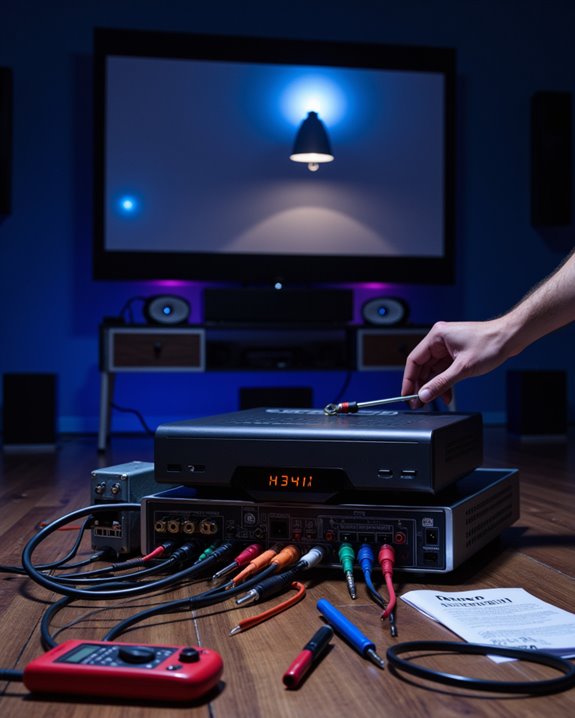
How can users quickly identify if faulty connections are causing a projector to cut out? The most direct approach is to check all audio and video cables—such as HDMI, VGA, and audio lines—for visible damage, loose plugs, or bent pins. Using a known-good cable can help determine if the issue is with the cable itself. Wireless connectivity, which refers to streaming devices or adapters that connect without physical cables, should be checked for stable pairing and recognition by the projector. Power cycling—turning devices off and on—can reset temporary glitches.
- Test audio by plugging different sources directly into the projector.
- For video, use a short direct cable and try multiple source devices.
- Use the remote control to select correct input ports, confirming device settings and modes match on both ends.
Recommended Products

All-in-One Compatibility for iPhone 15/16/17: Seamlessly for Phone, MacBook, iPad, Galaxy S24, Switch and USB-C laptop to HDMI TVs/Monitors/Mini Projector. No extra adapters required—stream, mirror, or present in seconds while keeping your device charged.

【4K UHD Visual Feast】This USB-C to HDMI cable supports up to 4K@60Hz resolution and is backward compatible with 1440P@60Hz and 1080P@120Hz. It can seamlessly transmit at 3840x2160 resolution, providing crystal-clear images and smooth video, suitable for high-definition monitors, TVs, and projectors, meeting the needs of various devices and use cases. 📌𝐍𝐨𝐭𝐞: 𝐔𝐒𝐁-𝐂 𝐩𝐨𝐫𝐭 𝐦𝐮𝐬𝐭 𝐬𝐮𝐩𝐩𝐨𝐫𝐭 "𝐃𝐢𝐬𝐩𝐥𝐚𝐲𝐏𝐨𝐫𝐭 𝐀𝐥𝐭𝐞𝐫𝐧𝐚𝐭𝐞 𝐌𝐨𝐝𝐞". 𝐍𝐎𝐓 𝐬𝐮𝐩𝐩𝐨𝐫𝐭 𝐏𝐨𝐫𝐭𝐚𝐛𝐥𝐞 𝐌𝐨𝐧𝐢𝐭𝐨𝐫 𝐨𝐫 𝐔𝐥𝐭𝐫𝐚 𝐖𝐢𝐝𝐞 𝐌𝐨𝐧𝐢𝐭𝐨𝐫.

UHD HDMI 2.1 Cable 25FT: Meets the newest standard HDMI 2.1 Version and charactrize by 3 times transmission speed more than Ultra HD 4K, less lag, stuck and flick. This HDMI cord is also backward compatible with HDMI 2.0b/2.0a/1.4/1.3/1.2/1.1 version
Reviewing Projector Hardware for Faults
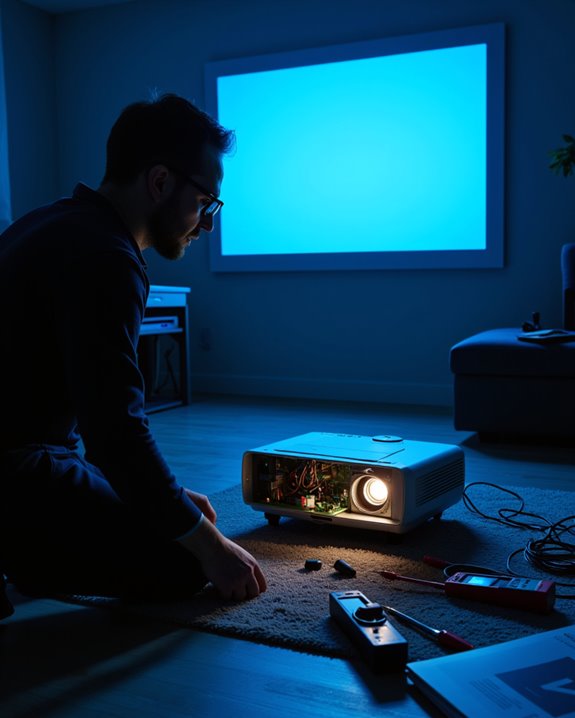
A thorough review of projector hardware can reveal many of the most common causes for a device cutting out unexpectedly. First, check the power supply by making sure the power cord is firmly connected and the switch is on. Inspect the internal power supply for faults and look for wear or damage in the power circuit. Next, prevent overheating by cleaning dust from vents and fans, ensuring proper airflow, and checking temperature warning lights. For lens maintenance, remove any dust or debris from the lens and confirm the lens cap is off. Lamp replacement is often necessary if the lamp is burnt out or not seated correctly; always use the manufacturer’s instructions. Finally, verify display settings and clear any obstructions around the projector for ideal function.
Performing a Simple Restart and Power Cycle
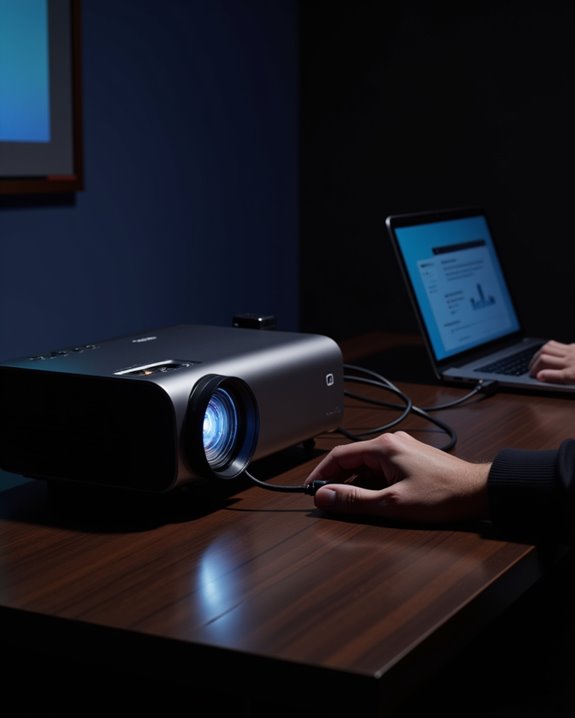
When a projector unexpectedly cuts out, performing a simple restart and power cycle is often the fastest way to resolve temporary technical issues. A restart involves turning the projector off with the power button and waiting until the indicator light stops blinking. Power cycling, which means unplugging the projector from the outlet for two to three minutes, resets internal components and can correct minor faults. It is essential to confirm the projector’s power cable is firmly connected, and the outlet is functional. If using a remote control, verify remote pairing and check battery status. For projectors that support updates, check if a firmware update is available, as outdated software can sometimes cause instability. Always disable standby mode before restarting for best results.
Cleaning and Maintaining Your Projector Regularly
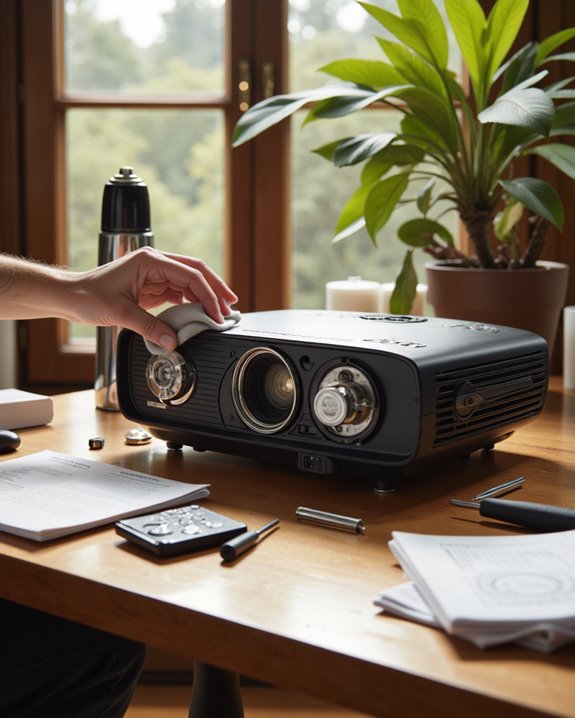
Regular cleaning and maintenance are critical for keeping a projector operating reliably and delivering clear images. Lens cleaning guarantees sharp visuals by removing dust and fingerprints with a soft, lint-free cloth and proper lens cleaner; always avoid abrasive chemicals. Air filter maintenance is equally essential: filters trap dust, and when clogged, they restrict airflow, causing overheating and shutdowns. To maintain proper airflow, remove and clean dust filters with compressed air or a soft brush, never water. Additional steps include:
- Cleaning the cooling fan with compressed air to prevent dust buildup.
- Wiping exterior surfaces and control buttons using a damp, then dry, cloth.
- Cleaning input ports with a soft brush or compressed air.
Following these steps and manufacturer guidelines extends projector life and maintains performance.
Recommended Products

WHAT YOU CAN GET: 1 camera lens Cleaner 50ml + 1 air blower + 1 two in one Lens Cleaning Pen + 1 Retractable wool soft brush + 5 sensor cleaning swab + 25 lens cleaning Tissue Paper + 2 Microfiber Cleaning Cloth + 8 Cleaner Wipes + 1 storage box.
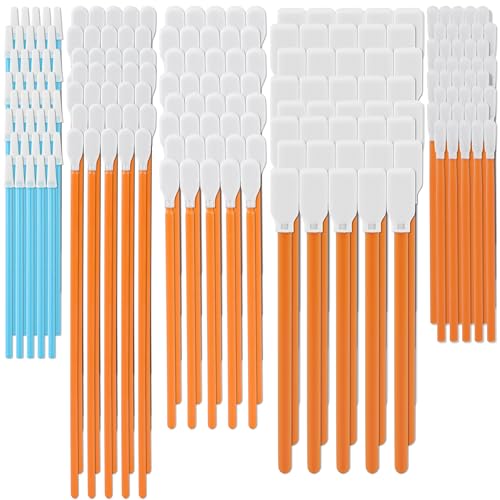
【Premium Quality】The AAwipes FA501 Superfine Lint-Free Cleaning Swab Kit is comprised of 5 different precision cleaning swabs made from double-knitted polyester tips that are securely attached to polypropylene shafts. These swabs are ideal for removing dirt from delicate surfaces in hard-to-reach areas, offering excellent particle capture, entrapment, and retention.

【UPGRADED LAPTOP CLEANING KIT 】 The macbook cleaning kit computer screen cleaner comes with a number of accessories including a retractable large brush, polishing cleaning cloth X 2, keycap puller, metal pen tip, flocking sponge, thin soft brush, soft plastic lens cleaning pen, 5 replacing cloth, large cleaning microfiber cloth. You deserve the comprehensive computer cleaning kit keyboard vacuum at a low cost
Knowing When to Seek Professional Assistance
Even after following routine cleaning and basic troubleshooting, some projector problems persist and require professional assistance. Persistent malfunctions—such as frequent power cycling, sudden shutdowns, or warning lights—often signal internal hardware faults. These issues can include lamp assembly failure, damaged circuitry, or faulty cooling systems, all needing expert diagnosis. If image quality continues to degrade beyond lens cleaning or alignment, a technician should evaluate the projector. Connectivity or interface problems that remain after checking cables and settings also warrant expert intervention. Firmware updates—software that controls projector functions—may require professional installation to avoid errors. Warranty considerations are important: only authorized service centers should perform repairs to maintain warranty coverage. When repair costs approach the price of a new model, professional advice is essential for replacement decisions.
Frequently Asked Questions
Can Firmware or Software Updates Fix Projector Cut-Out Issues?
Like a digital locksmith mending unseen cracks, firmware updates and software patches can resolve projector cut-out issues by sealing software gaps, enhancing stability, and optimizing device communication. However, persistent problems may signal deeper hardware faults beyond their repair.
Do Environmental Factors Like Humidity Affect Projector Performance?
Environmental factors such as humidity issues and temperature fluctuations can negatively impact projector performance. High humidity may cause internal condensation or component failure, while temperature changes can disrupt ideal operation, leading to image distortion or reduced functionality over time.
Could Remote Control Interference Cause My Projector to Turn off Unexpectedly?
Remote control interference can cause signal disruption, leading to unexpected projector shutdowns. Overlapping frequencies, electromagnetic interference, or signal reflections from nearby devices can trigger erratic behavior, including turning off the projector without user input or warning.
Are There Common Issues With Specific Projector Brands or Models?
Brand specific malfunctions and model reliability vary widely; for example, Epson’s Home Cinema 880 is noted for poor contrast, while BenQ models show performance variability. Hisense offers affordability but may compromise build quality, affecting user satisfaction.
How Do Projector Lamp Hours Impact Sudden Shutdowns?
Projector lamp hours can vanish faster than a magician’s rabbit, as exceeding the lamp lifespan often leads to abrupt shutdowns. Timely bulb replacement is essential, since an expired lamp may cause frequent and unpredictable projector power-offs.